
How to upload a website or WordPress site with FTP on Mac
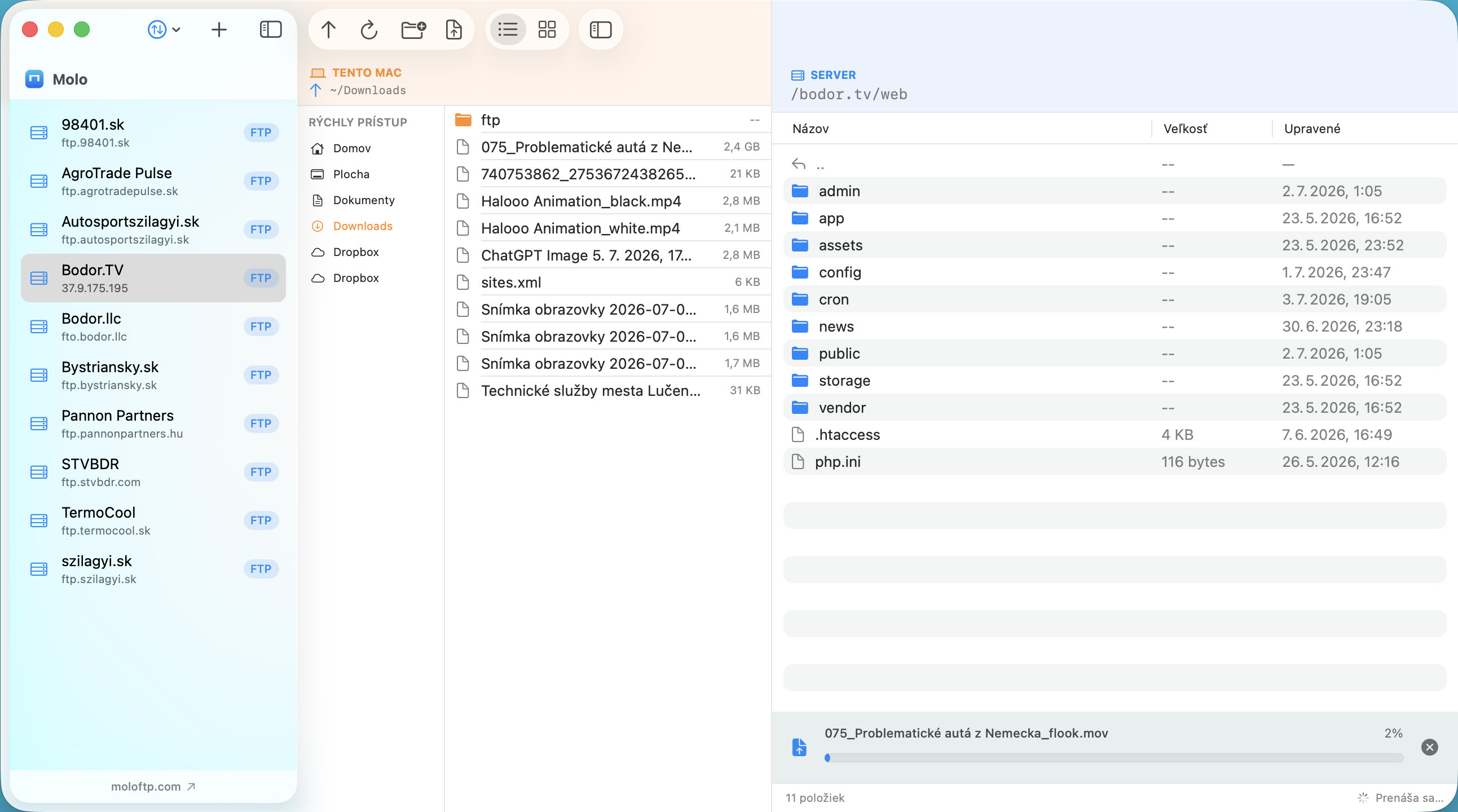
Whether you built a static website on your Mac or need to install a WordPress theme by hand, FTP (or better, SFTP) is the standard way to get files onto your hosting. Here is how to do it safely.
1. Gather your connection details
From your hosting provider you need the host, username, password and protocol (SFTP if available, otherwise FTPS or FTP). If you do not have them yet, see how to connect to an FTP server on Mac.
2. Find the right folder
The public part of your website lives in one specific folder on the server. The name depends on the host: common ones are public_html, www, htdocs or httpdocs. Files placed outside it are not visible on the internet. If you are unsure, look for the folder that already contains your index.html or wp-config.php.
3. Upload with Molo
- Add your server and connect.
- Open the web folder on the server pane.
- In the local pane, open the folder with your website (use Quick Access for Desktop, Documents or cloud drives).
- Drag the files or folders onto the server pane. Molo shows overall progress and lets you cancel.
- If a file already exists, choose Replace, Keep Both or Skip. For folders, Merge and Overwrite updates the existing folder.
WordPress: themes and plugins
- Upload the unzipped theme folder to
wp-content/themes/and plugins towp-content/plugins/, then activate them in the WordPress dashboard. - Never overwrite
wp-config.phpunless you mean to; it holds your database settings. - Upload large folders over a stable connection; Molo reconnects automatically if the link drops.
Avoid these mistakes
- Uploading to the wrong folder: check the path shown above the server pane.
- Deleting without a backup: deleting on a server is permanent. Download a copy first.
- Using plain FTP over public Wi-Fi: prefer SFTP or FTPS. See FTP vs SFTP vs FTPS.
- Forgetting hidden files such as
.htaccess, which your Mac hides by default. PressShift ⌘ .in Finder to show them.
Frequently asked questions
Which folder do I upload my website to?
Usually public_html, www, htdocs or httpdocs, depending on your host. Upload to the folder that already contains your site's index file.
Can I install a WordPress theme with FTP?
Yes. Upload the unzipped theme folder to wp-content/themes on the server, then activate it in the WordPress dashboard.
Is it safe to delete files on the server?
Deleting on a server is permanent, so keep a backup copy before you delete anything.