
How to move from FileZilla to Molo and import all your servers
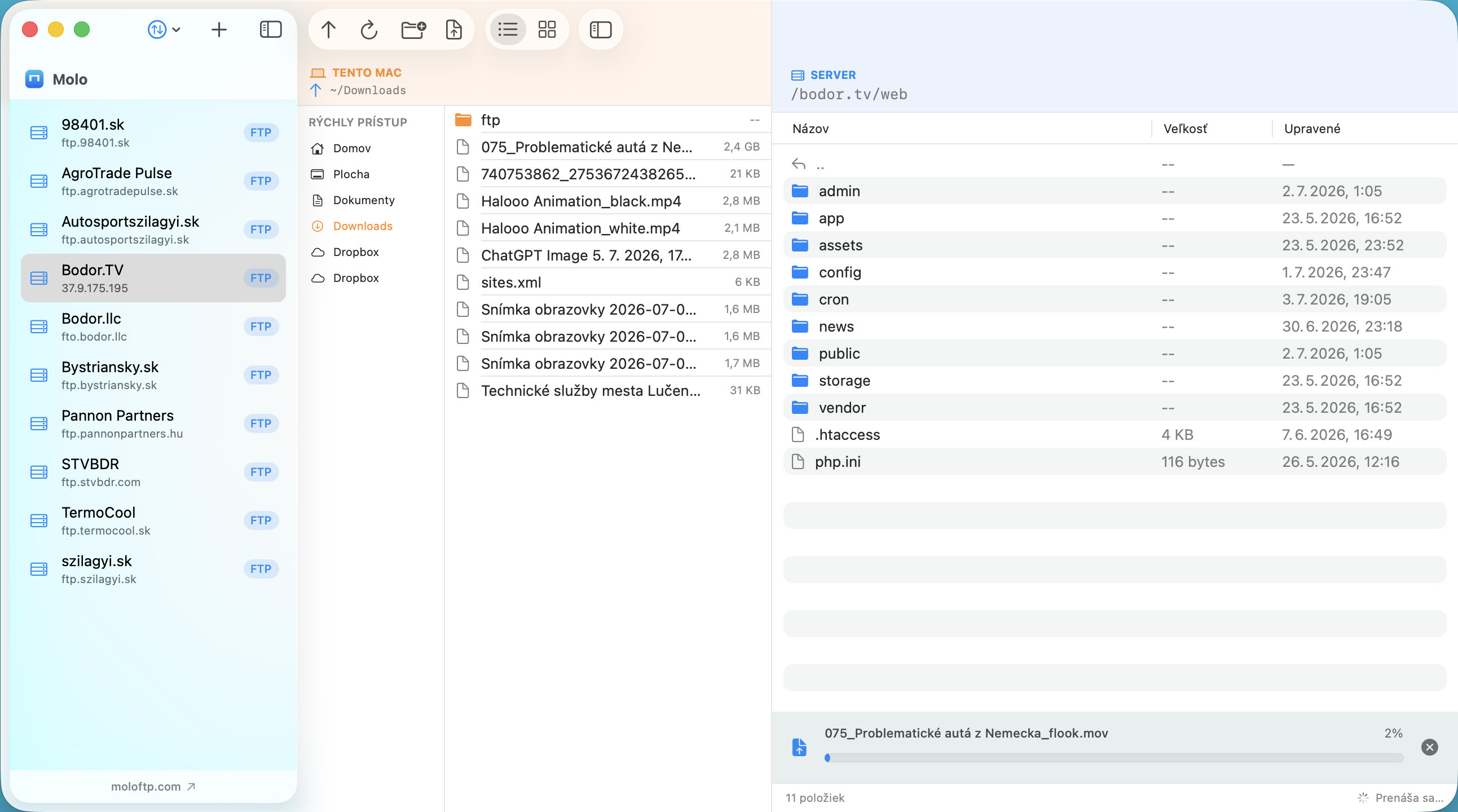
You do not have to retype every server when you switch. Molo can import the site list that FileZilla exports.
Step 1: export your sites from FileZilla
- Open FileZilla and choose File ▸ Export….
- Select the Site Manager entries (and tick the option to include passwords if you want them transferred).
- Save the XML file somewhere you can find it, for example on the Desktop.
Step 2: import into Molo
- In Molo, open the Import/Export menu above the server list.
- Choose Import from FileZilla… and select the XML file.
- Molo shows how many servers were imported and how many were skipped because of an unsupported protocol.
Step 3: check and connect
- Click a server to connect. If it fails, use Edit… on the error screen to correct the details.
- If a server needs a password that was not exported, enter it once; Molo then stores it in the macOS Keychain.
- Delete the export file afterwards: it may contain your passwords.
What does not carry over
Molo supports FTP, FTPS and SFTP. Sites that use other services in FileZilla Pro, such as cloud storage, are skipped. Transfer queues, filters and other FileZilla settings are not imported.
Going back or sharing
Molo can also Export to FileZilla…, and it has its own backup file for moving all your servers to a new Mac. See the user guide.
Not sure the switch is right for you? Read Molo vs FileZilla. Molo comes with a 14-day money-back guarantee.
Frequently asked questions
Can Molo import FileZilla servers?
Yes. Use Import/Export ▸ Import from FileZilla… and select the XML file you exported from FileZilla.
Are my passwords imported?
If the FileZilla export includes passwords, they are imported and stored in the macOS Keychain. Otherwise you enter them once.
Can I export back to FileZilla?
Yes. Molo offers Export to FileZilla… in the same menu.